Find your way around
This page shows you what each part of the PlainSpeak window is for.
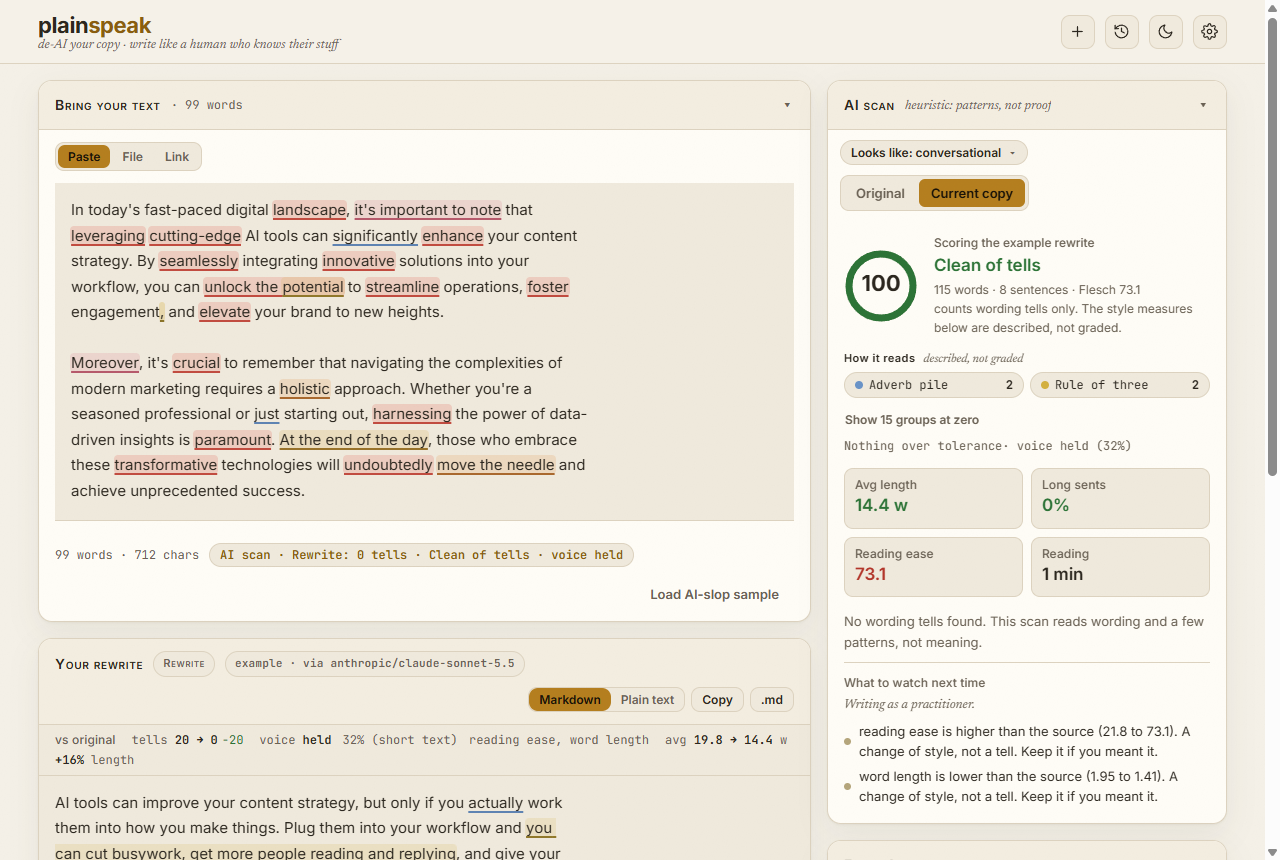
Your original
The Original panel holds the text you start from, and a fresh rewrite starts from this box. After the first rewrite, Rewrite again works on the version you are looking at, until you change the text here: then the next rewrite starts from your original again, and the edited text is your original. History keeps the very first copy. Choose how to bring it in:
- Paste: paste or type your draft.
- File: open a
.txt,.mdor Word (.docx) file. You can also drag a file onto the window. A Word file becomes Markdown: its headings, bold and italic, lists, quotes and links are kept, and a table's text becomes plain paragraphs. A line under the panel names anything that was turned into paragraphs or left out, such as images, footnotes, comments and dividing lines. - Link: fetch the text of a public web page, such as a public Notion page.
Load AI-slop sample fills the panel with an example draft and an example rewrite, so you can try everything before you add a key.
Select the Original title to fold the panel away, and again to open it. In Stacked it folds to its title bar. Side by side, it folds to a slim strip at the left, with its word count, and the rewrite takes the rest of the width. Select the strip to open it again.
The rewrite
The Your rewrite panel shows the rewrite. You can edit it by hand, and the scan updates as you type. Double-click a word for plainer ones that fit the sentence (Find a plainer word). Copy, Copy as and the Download buttons sit in a row under its title. In Stacked, that row appears once there is a rewrite. Side by side, it is always there, greyed until there is a rewrite.
| Control | What it does |
|---|---|
| Recipe | Shows the voice, length and model in use, and opens the Rewrite recipe: the model, the mode, the voice and the length. |
| Rewrite | Starts a rewrite. Ctrl+Enter does the same. It is greyed out until there is text to rewrite, and the line beside it says why. |
| Audit with two other models | When ticked, two other AI models read each rewrite and point at anything that still sounds generated. It costs about two cents and needs an OpenRouter key. |
| Copy | Copies the rewrite, formatted for Google Docs, Word and email and as plain text for everywhere else. Greyed out until there is a rewrite to copy. After a copy, a note next to it says what went to the clipboard, until you change the rewrite or the Copy as choice. |
| Copy as: Markdown or Plain | Chooses the plain text Copy puts on your clipboard: with the markdown markup, or with it stripped. |
| Download .md | Downloads the rewrite as a Markdown file. With Copy as Plain it reads Download .txt and downloads a text file. Greyed out until there is a rewrite to download. |
| Download .docx | Downloads the rewrite as a Word file, with Word's own heading, list and quote styles, so it takes on your manuscript's styles when you paste it in. Greyed out until there is a rewrite to download. |
| Clear versions | Beside the versions above the rewrite, once there are any. Clears the rewrites and keeps the text in Original. |
Each rewrite is saved as a version. Select a version above the rewrite to go back to it.
The panels on the right
The first three panels run in the order to check a rewrite in: the wording, then the facts, then a second opinion on the wording. A short note beside each title says what that panel judges.
- AI scan: the score, the tells it found, and how the text reads. Switch between Original and Current copy to compare your draft with the rewrite. The Looks like button shows what kind of piece PlainSpeak thinks you pasted, such as long-form or social, and lets you correct it.
- Facts & sources: the numbers, dates, names, links and quotes in your original, checked against the rewrite. Find sources looks for a source for each claim that has none.
- Audit: what the two audit models said about the rewrite, when the audit is on: the verdict as a card with one plain sentence, then a card for each audit model. See Get a second opinion.
- About PlainSpeak: what the scan and the facts check can and cannot tell you, in five short lines, with links to What PlainSpeak cannot do and to Protocol, how PlainSpeak is tested. It starts folded away.
Select a panel's title to fold it away or open it again. PlainSpeak remembers which panels you keep open.
Side by side, in a window narrower than about 1,530px, these panels fold to a slim AI scan strip at the right, with the score. Select the strip to open them as a drawer over the rewrite. Select the strip again, press Esc or click outside the drawer to close it.
The next-step line
A single line beside Rewrite suggests one thing to try next, based on what is on screen. It is never a popup, and there is only ever one. A suggestion goes once you have used that feature, or after it has been shown three times. Select Stop tips to turn them all off.
The buttons at the top right
| Button | What it does |
|---|---|
| Bell | Appears when an update has downloaded. Select it to install the update now. Closing PlainSpeak never installs it; the next time you open PlainSpeak, it asks once. |
| New piece | Starts a new piece. In a narrower window it shows only its + icon. |
| History | Opens your History of past pieces and rewrites. In a narrower window it shows only its clock icon. |
| View | Small icons that change how the text is laid out and shown, without changing the text. See The View controls below. |
| Sun or moon | Switches between light and dark. |
| Trial or plan | Shows Free trial: ready to start before you start your trial, the days left while it runs, or Free: scan and edit once it ends. Select it to start the trial or to add a licence. See Your free trial. Hidden once you have a licence. |
| Gear | Opens Settings: your AI provider and key, your licence, voices, templates and your writing baseline. |
The View controls
The View group sits beside History. Hover over an icon to see its name. The icons never move. When one cannot be used, it is greyed and its tooltip says why.
| Icon | What it does |
|---|---|
| Two bars, one above the other | Stacked: Original above Your rewrite. |
| Two columns | Side by side: Original on the left, headed Before, and Your rewrite on the right, headed After. The two texts start and end on the same line, and the compare bar runs across the top of both. Before your first rewrite, the After column says Your rewrite will appear here. It needs a window about 1,160px wide or wider. In a narrower one the button is greyed, its tooltip says Needs a wider window, and PlainSpeak shows the two stacked. Your choice is kept, and widening the window brings side by side back. |
| Chain link | Link scrolling. Side by side, scroll one side and the other follows paragraph by paragraph, so the same point stays level in both. When the two texts are shaped too differently to pair, they follow by position instead, and the tooltip says Following by position. Select it to turn this off. It starts off for Repurpose, where the post is built differently from its source. It is greyed in Stacked, until there is a rewrite, and while Original is folded, and its tooltip says why. |
| Eye | Preview: both texts formatted, as they will read once pasted. See Preview. |
PlainSpeak remembers your layout and link scrolling choices.
Whichever editor you are typing in shows a formatting toolbar along its top edge. See Format without Markdown.